
Members Map Tutorial
When you first come to the Members Map, you will be presented with an opportunity to add yourself.
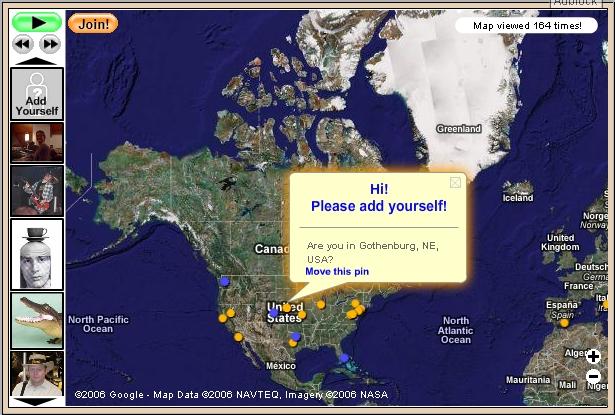 If the location is not where you would like it to be, click on the "Move this pin" link. 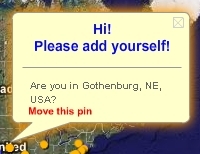 The Current location will be shown. 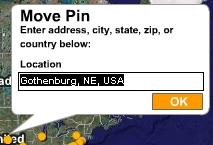 Type in a location that is more appropriate and select the "OK" button. 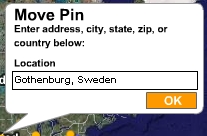 The location should have now moved. 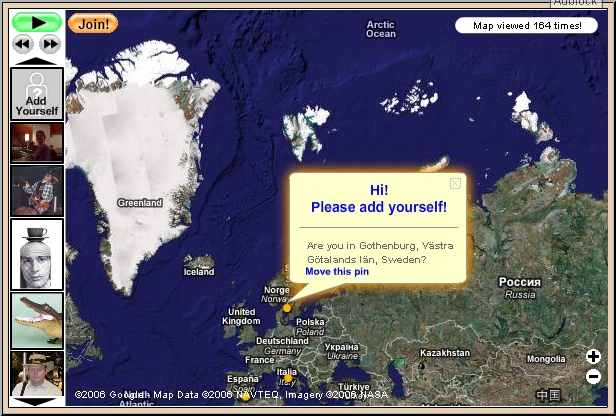 Now click on the "Hi! Please add yourself!" link. 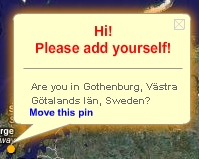 You will need to choose a pin type, then select the "Continue" button. 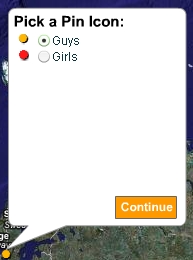 Now you can fill in the pin properties. 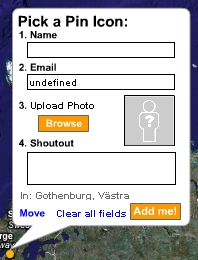 Put in your name and email address (required). Uploading a Photo is highly recommended. Using the same Avatar picture from ICW will allow friends to locate you easily. To upload a photo, click the "Browse" button. 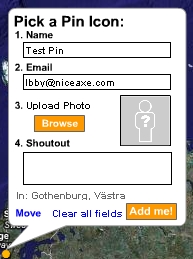 Browse to the picture file you would like to use. Select it and click the "Open" button. 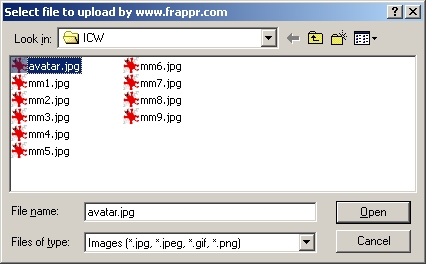 The photo should upload quickly. 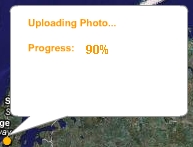 Now you should see your Avatar picture. You can add an optional "Shoutout" comment if you like. When you're done, click the "Add me!" button. 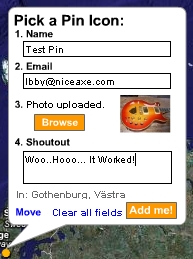 You should see a confirmation. Click the "Continue" button to finish. 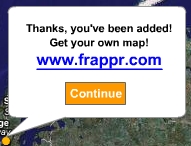 You should now see your completed pin. 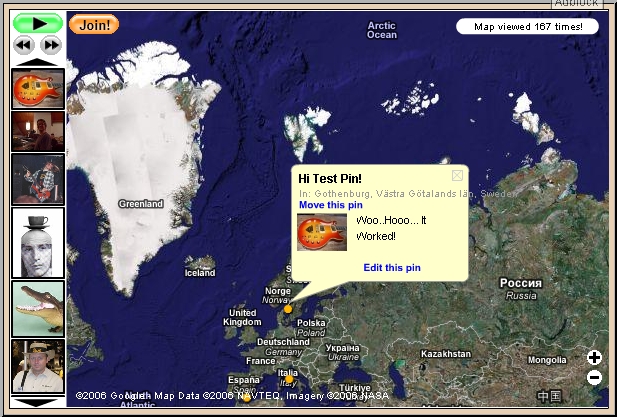 But... All was not well in Map Land. Upon returning to the map (or refreshing), I found the pin back in Nebraska. 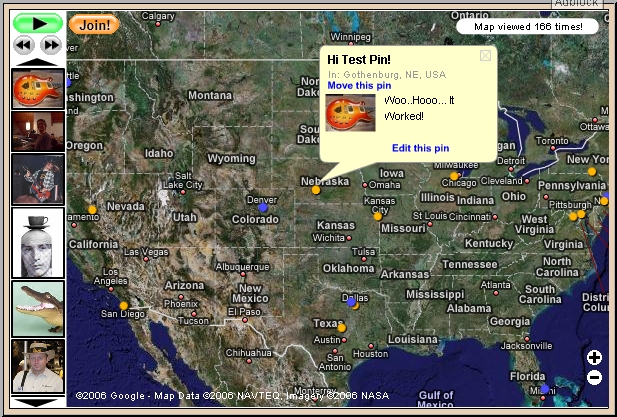 It appears that Gothenburg, Sweden is confused by the system with Gothenburg, NE, USA I should have been suspicious when it presented multiple locations in Sweden. Gothenburg, Västra Götalands län, Sweden (Web fonts may not represent the preceeding text properly) I selected "Move this pin" again and typed in only Sweden. 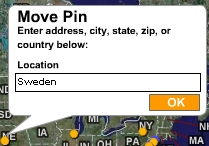 This time it liked the location with no confusion. 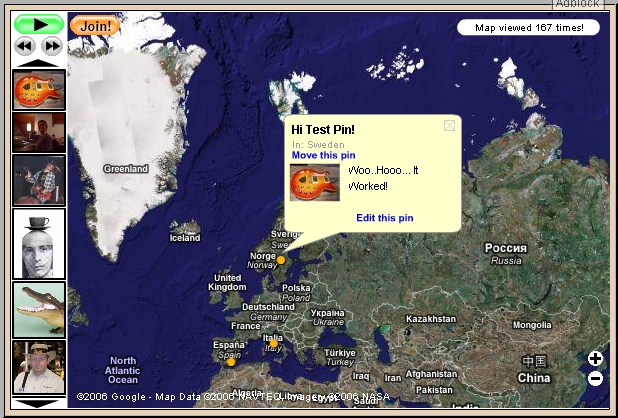 Using these steps should allow you to create a pin location, or edit your current pin to update it if necessary. |

ICW Members Map